Search and Filter Range Slider Not Updating
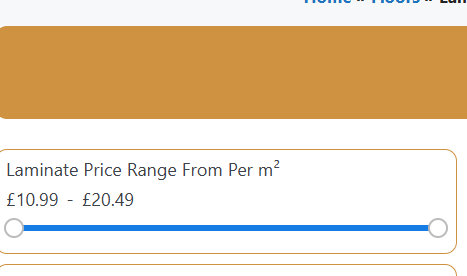
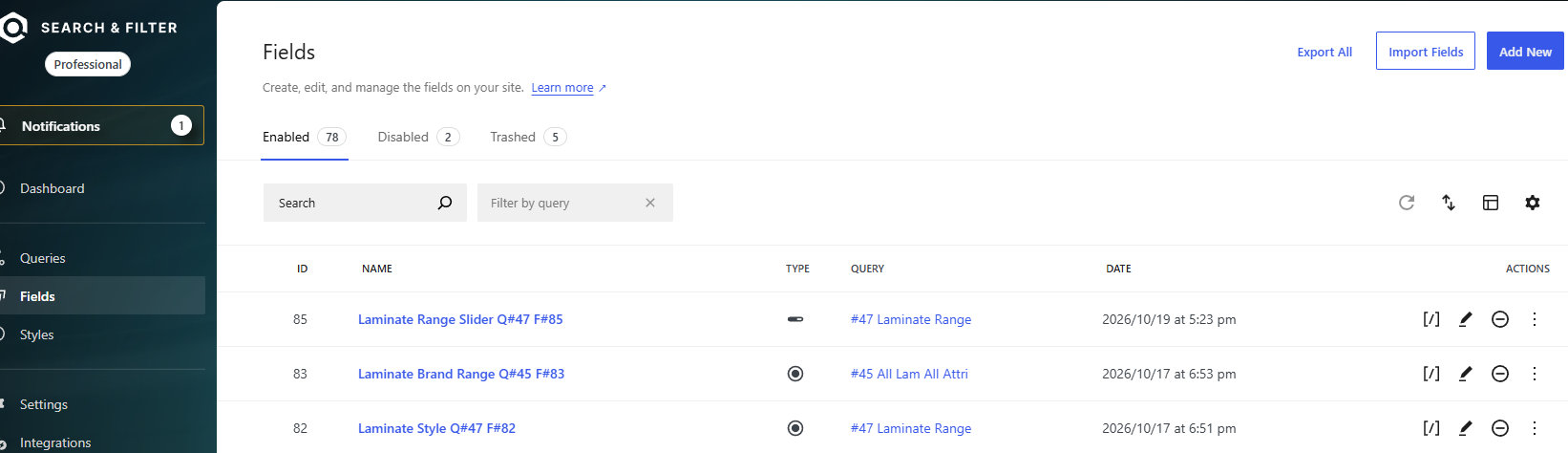
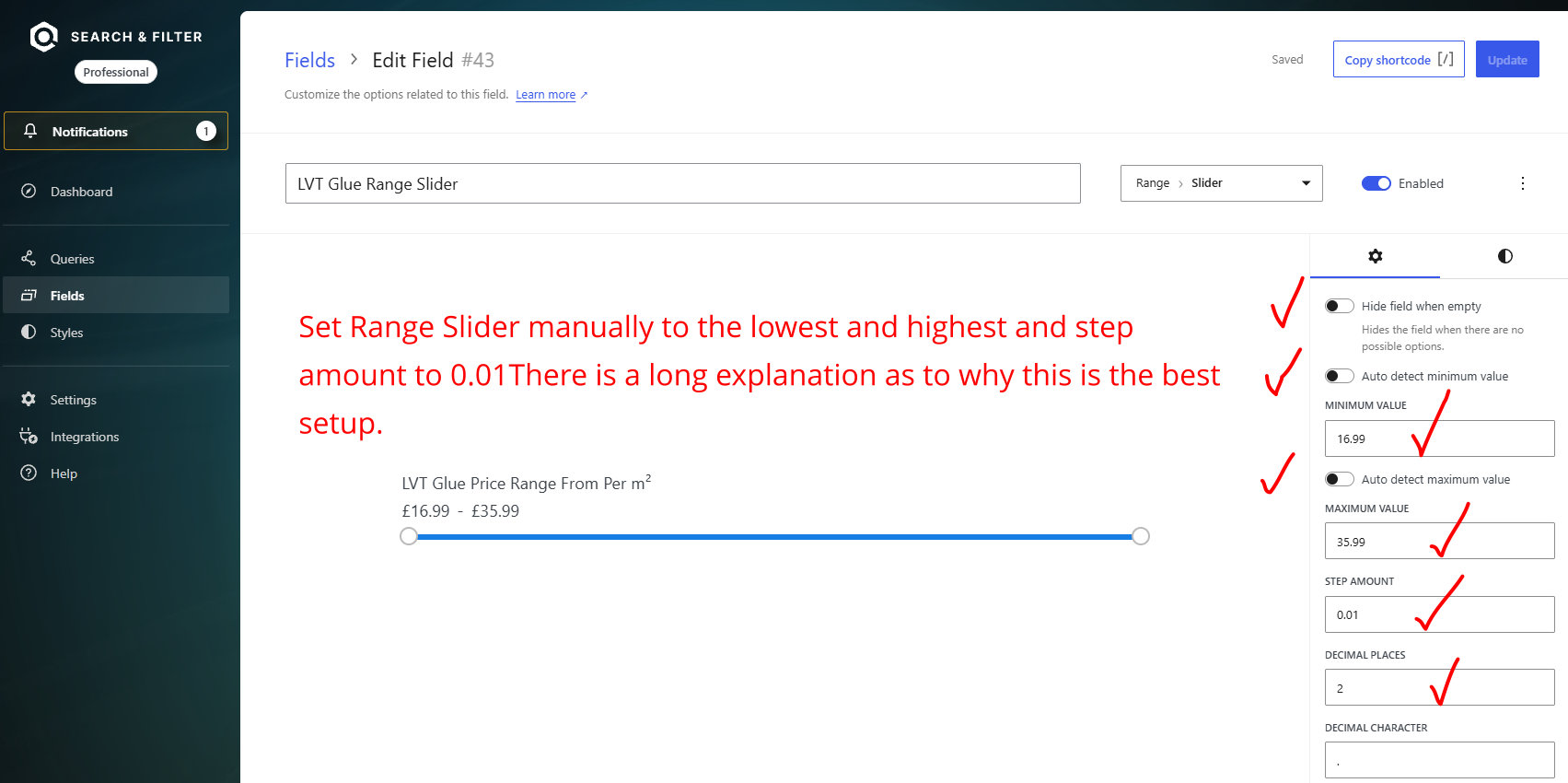
Search & Filter Range Slider – now and again it feels like the slider “jams” it is not refreshing when changes are made. The fix seems to be to duplicate it and then it has a new Field Number and I apply that and it works. OK that is good and only takes a few minutes to fix, but it feels like there should be a better way of forcing the data to refresh. Any suggestions.
In Search & Filter Pro (v3+), this issue occurs because the range slider caches its minimum, maximum, and indexed meta ranges. When products or posts update, the old transients or cache keys stay tied to that specific Field ID, causing the UI slider handles to “jam” or freeze.
Duplicating the field generates a new Field ID (e.g., #85), forcing a fresh cache generation. To force a data refresh without recreating fields each time:
Option 1: Rebuild the Search & Filter Indexer
Instead of duplicating the field, force the plugin to purge stale post meta range boundaries.
- In your WordPress admin sidebar, go to Search & Filter > Settings (or Queries).
- Locate the Cache / Indexer section.
- Click Rebuild Index or Clear Cache.
- Verification Step: Reload your frontend page in an incognito window and test the slider handles; they should slide freely across the updated range.
Option 2: Turn Off Dynamic/Auto Min-Max Auto-Detection
If your range slider automatically detects min and max prices/values, high-frequency database updates can cause the cached range limits to desynchronize.
- Go to Search & Filter > Fields and click edit on your Range Slider field.
- In the field settings panel, find Auto Detect Min / Max (or Dynamic Min/Max Limits).
- Switch it from Auto Detect to Manual Values (or set static upper/lower bounds if your pricing structure allows).
- Save the field.
- Verification Step: Refresh the post/product query on the frontend and verify that adjusting values moves the slider smoothly without sticking.
Option 3: Exclude Search & Filter Transients from Page Caching
If you are using a caching plugin (such as WP Rocket, LiteSpeed Cache, or WP Optimize), page caching or object caching will store the old field transient state.
- Clear your site-level Caching Plugin cache (and Object Cache / Redis if active).
- In your caching plugin settings, exclude AJAX calls containing query parameters or rule out the Search & Filter assets path (
/wp-json/search-filter/or AJAX endpoints) from HTML caching. - Verification Step: Edit a product price on the backend, clear page cache, and test the range slider on the live page without recreating the field.
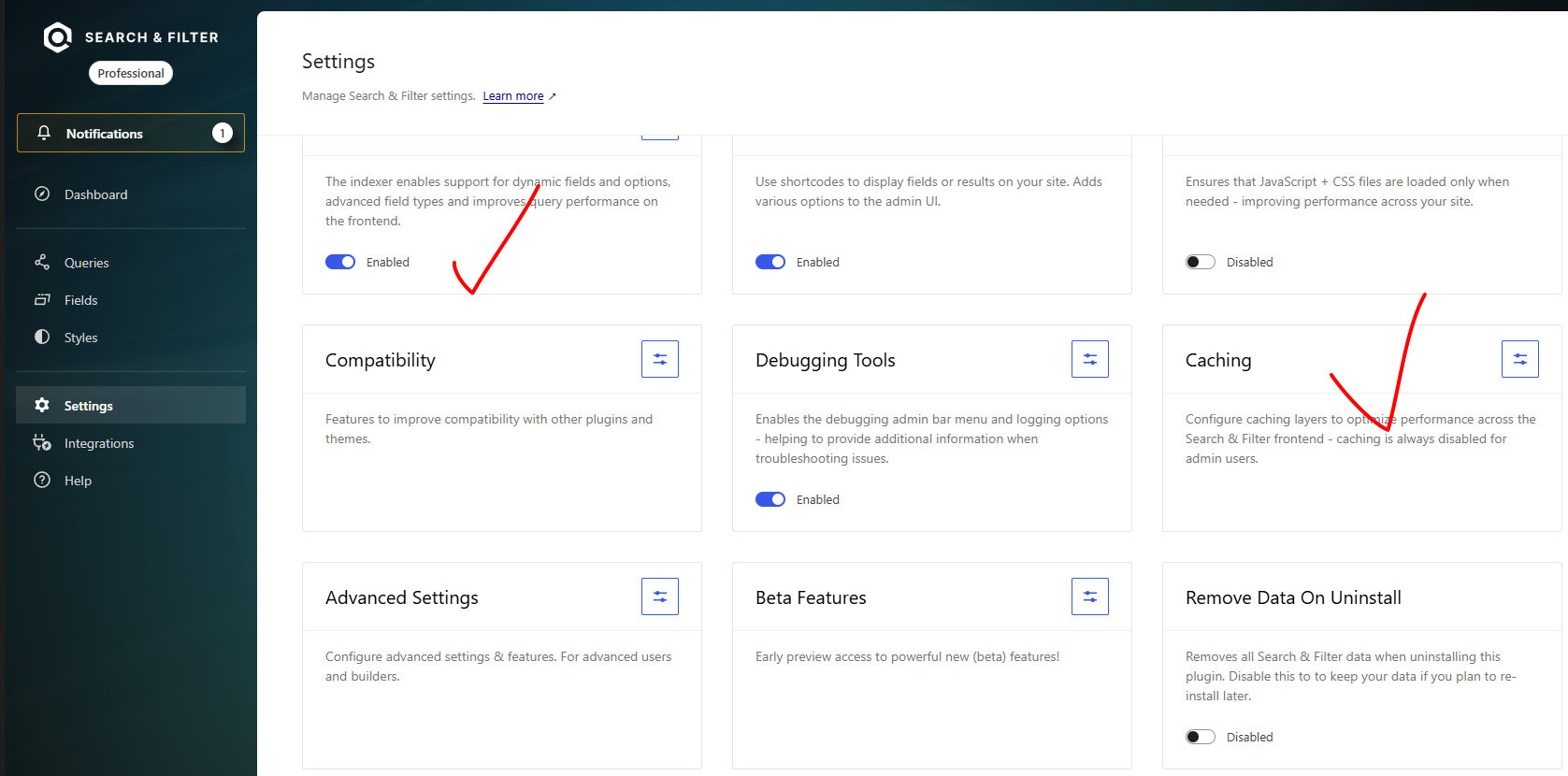
I cannot see a Clear Cache. There is an Enable Caching – I could switch that off Update and then switch it back on and Update. Would work?
Yes, toggling Caching off and back on will flush the cached range data. However, in Search & Filter v3, the controls to adjust or rebuild specific modules are located behind the blue slider button ⇄ on each card.
Step 1: Open the Caching / Indexer Controls
Click the blue action button (⇄) on the Caching card (or the Indexer card in the top left) to reveal the quick actions.
+------------------------------------+
| Caching                        [⇄] <-- Click this button
|                                    |
| Configure caching layers...        |
+------------------------------------+
Step 2: Clear the Cache or Rebuild the Index
Inside that sub-menu:
- For Caching: Toggle Enabled to off, save changes, and then toggle it back on.
- For the Indexer: Click Rebuild Index or Clear Cache.
Step 3: Verify the Fix
- Open your frontend product/shop page in a new private or incognito window.
- Drag both handles on the range slider.
- Success criteria: The handles should move smoothly without snapping back or sticking.
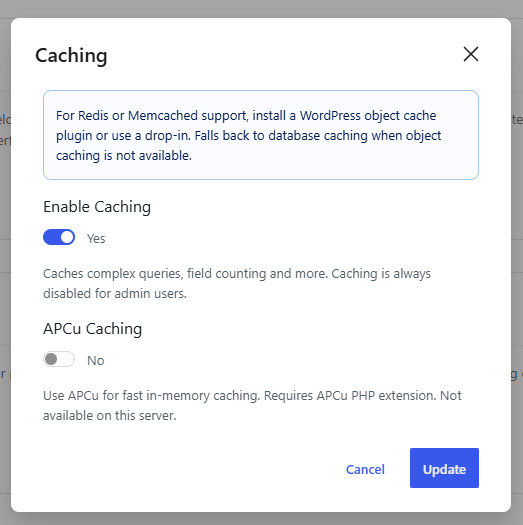
OK got so just toggle off Update toggle on Update and hopefully that will refresh the data?
Yes, exactly! Toggling Enable Caching off, saving, and then toggling it back on flushes the saved query values and clears out the stuck range data.
1.Turn off caching:
Toggle Enable Caching to the left (No) and click the blue Update button.
2.Turn caching back on:
Open the same Caching window again, toggle Enable Caching back to Yes, and click Update.
3.Verify on the frontend:
Open your site page in a Private / Incognito window to check. Both handles on the slider should now drag smoothly without getting stuck.
Tip for next time: If doing this toggle trick feels repetitive, you can click the ⇄ button on the top-left Indexer card instead (from your previous image) and run Rebuild Index. That specifically re-indexes price ranges whenever you add or edit products.
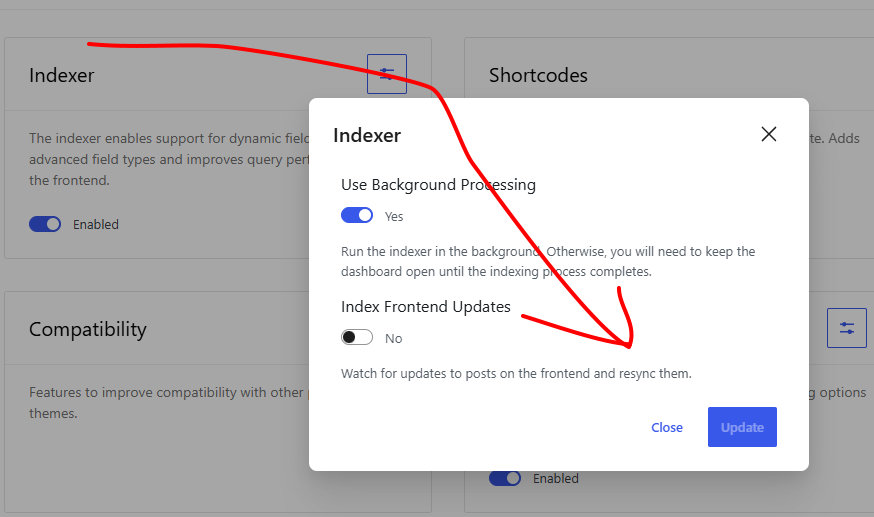
Does this perform the same task?
Not completely—it addresses a different part of the problem.
Toggling Caching flushes the saved query data on demand. The Index Frontend Updates setting is an automated watcher that triggers a resync whenever changes happen on the front end.
Here is the difference and how to set it up:
- Caching Toggle: A manual reset button. Use this whenever you need an immediate fix for stuck range sliders.
- Index Frontend Updates: An automatic background task. Turning this on allows Search & Filter to catch frontend changes and sync the range slider data automatically.
How to configure this setting
1.Enable Frontend Sync:
In the Indexer modal window, switch Index Frontend Updates from No to Yes.
2.Save changes:
Click the blue Update button at the bottom right.
3.Verify the configuration:
Open the Indexer panel again to ensure Index Frontend Updates remains toggled to Yes.
Note: “Frontend Updates” specifically monitors post or product updates made on the public side of your site (like user submissions or frontend stock/price edits). Standard WooCommerce/WordPress admin dashboard edits are indexed separately via the main Indexer settings.