Google Analytics UTM Deep Dive
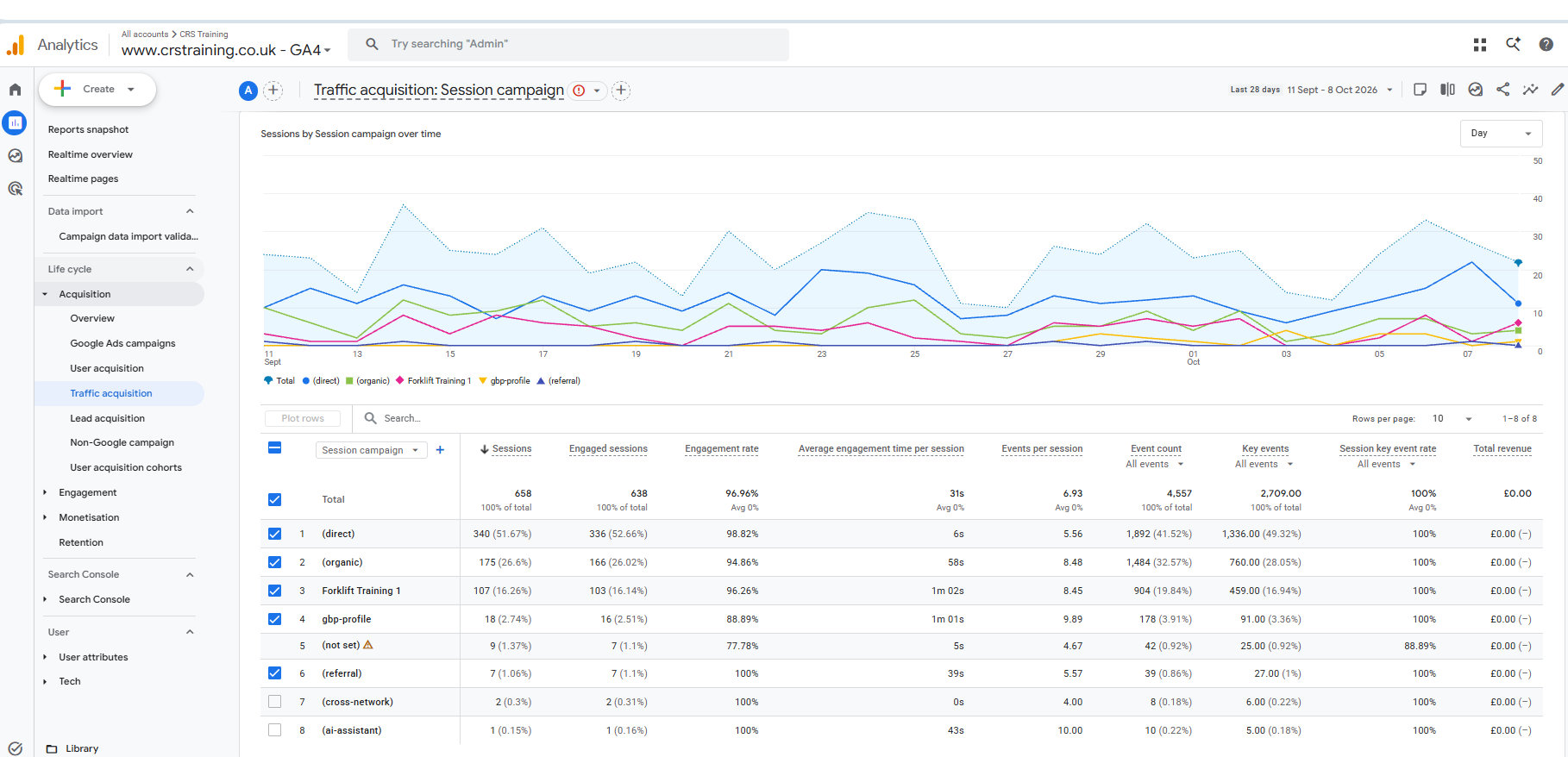
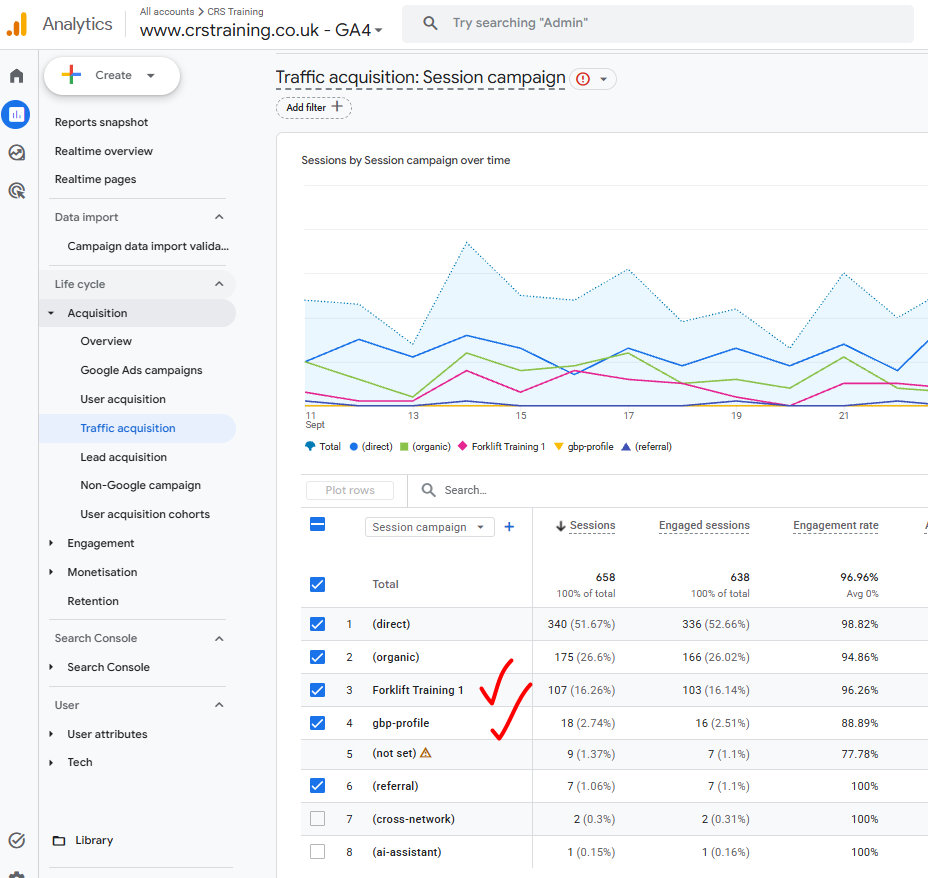
This section in GA4 shows the Keywords people clicked to get to the crstraining.co.uk website, if I want to see this for other accounts what do I need to do.
To view the Google Ads Search Queries (keywords clicked) for other Google Analytics 4 (GA4) properties or accounts, ensure the following prerequisites and steps are completed:
Step 1: Link the Google Ads Account to the GA4 Property
The Session Google Ads query dimension requires active data sharing between the Google Ads account and the GA4 property.
- Log into Google Analytics and navigate to Admin (the gear icon at the bottom left).
- Under the Product Links section, click Google Ads Links.
- Click the Link button in the top-right corner.
- Select the relevant Google Ads account(s) (you must have Administrator access in Google Ads and Editor/Administrator access in GA4).
- Click Next, keep Enable Personalised Advertising and Enable Auto-Tagging checked, then click Submit.
Step 2: Ensure Auto-Tagging is Enabled in Google Ads
Auto-tagging sends keyword and campaign parameters into GA4.
- Log into the target Google Ads account.
- Go to Admin (or Settings) > Account Settings.
- Expand the Auto-tagging section.
- Ensure the checkbox “Tag the URL that people click through from my ad” is selected and saved.
Step 3: Access the Report in GA4
Once linked and receiving ad traffic, navigate to the search query report:
- Open the relevant GA4 property.
- Go to Reports > Acquisition > Google Ads campaigns.
- In the primary dimension dropdown menu (which defaults to Session Google Ads campaign), click the dropdown arrow and select Session Google Ads query.
How to Improve These Keywords for CRS Training
- Add High-Performing Queries as Exact/Phrase Match Keywords:
forklift training,forklift truck training, andforklift refresher course near meare generating solid user engagement and conversions (Key Events). Ensure these exact search terms are directly added to targeted Google Ads ad groups as exact match ([forklift training]) or phrase match ("forklift training") keywords with tailored ad copy.
- Refine Location Targeting & Local Bidding:
forklift training bristolhas high engagement time (3m 47s) and key events. Ensure localized ad extensions/assets and location-specific ad groups or landing pages are used to capitalise on location-based intent.
- Filter Out Low-Intent or Non-Converting Terms:
- Search terms like
find a courseare broad with low engagement (3s average engagement time). Monitor these terms; if spend builds up without meaningful key events, add them as Negative Keywords in Google Ads to save budget.
- Search terms like
- Identify Gaps for Dedicated Landing Pages:
- Specific intent terms like
1 day forklift courseorforklift refresher course near meshould lead to dedicated pages explicitly confirming 1-day or refresher course availability, rather than a generic homepage.
- Specific intent terms like
No, I cannot see your chat history or conversation context from other Gems or standard chats within your Google account. Each Gem and chat session operates as an isolated thread to maintain privacy and data security.
To help optimise keywords for your Google Ads campaigns or GA4 reporting, you will need to paste the data or queries directly into this chat.
Key Areas to Focus On for Keyword Improvements
When reviewing keywords or search terms for your website, consider evaluating:
- Match Types & Specificity:
- Transitioning broad search terms to Phrase Match or Exact Match to prevent budget wastage on irrelevant searches.
- Negative Keyword Lists:
- Identifying non-converting terms (e.g. “free”, “jobs”, “salary”, or irrelevant locations) and adding them to a master negative keyword list.
- Landing Page Alignment:
- Ensuring specific terms (such as specialized training or refresher courses) lead directly to dedicated landing pages rather than a generic home page.
- Conversion Tracking & Engagement:
- Reviewing the Key Events (conversions) and Average Engagement Time in GA4 for each term to ensure spend is directed toward high-converting traffic.
From this page can I see the UTM settings
Yes, you can see some UTM parameters on this page, but not all of them in full detail from this specific view.
Here is what you are currently seeing:
- UTM Campaign (
utm_campaign): Yes. Because the report primary dimension is set to Session campaign, you are currently viewing campaign names likeForklift Training 1andgbp-profile. - UTM Source / Medium (
utm_source/utm_medium): No. To see these, you need to add a secondary dimension by clicking the+icon next to the blue Session campaign dropdown box. - UTM Term / Content (
utm_term/utm_content): No. These are not visible here by default.
How to view full UTM details on this page
- Change the primary dimension: Click the dropdown menu where it currently says Session campaign. You can switch this to Session source / medium or Session source to see where the traffic originated.
- Add a secondary dimension: Click the
+icon next to Session campaign. Type “source” or “medium” in the search bar and select Session source / medium to view campaign and source data side-by-side.
UTM Term / Content (utm_term / utm_content): No. These are not visible here by default. OK if they are not there by default how do I see them
To view utm_term (Search Keyword) and utm_content (Ad/Creative Variant) in GA4, you need to select their corresponding dimension names in the traffic reports.
In GA4, these are named Session manual term and Session manual ad content.
1.Add a Secondary Dimension:
In your current Traffic acquisition report, click the blue + button next to the Session campaign dropdown box.
2.Search for the Dimension:
Type “manual” into the search bar that appears.
3.Select the Required UTM Parameter:
- Select Session manual ad content to view your
utm_contentvalues. - Select Session manual term to view your
utm_termvalues.
Verification
Once selected, a second column will appear in your table showing the specific ad variant or keyword alongside your campaign names. If you see specific values (or (not set) for links without those parameters), the step was successful.
Note on Google Ads & Search Console
If you are running Google Ads or looking for organic keywords, Google automatically hides or redacts specific user search terms for privacy reasons:
- Paid Google Ads keywords appear under Session Google Ads keyword.
- Organic search terms are largely hidden in GA4 and should be viewed via Google Search Console instead.
Part of my problem is that most of these options look very similar and the ones you refer to do not seem immediately apparent. If from here. I can see that the UTM from the Google Business Profile is showing in the results and that with an average session time of 1m 01s it feels “on target”. Forklift Training is the one and only campaign and that seems to be working on this screen. Lets go one step at a time where can I see more details about UTM for the Forklift Training 1 campaign.
To view more details specifically for the Forklift Training 1 campaign without getting overwhelmed by other traffic, you need to filter the report down to just that campaign.
1.Filter to the Forklift Campaign:
Type “Forklift Training 1” into the Search… box located directly above the table (just above row 1) and press Enter. This will hide all other traffic sources like (direct) or (organic).
2.Add the Source / Medium Dimension:
Click the blue + icon next to the Session campaign column header.
3.Select Session Source / Medium:
In the search box that pops up, type “source” and select Session source / medium from the list.
Verification
You will now see a single main row for Forklift Training 1 broken down by the exact source and medium (e.g. google / cpc, facebook / ad, or newsletter / email) that brought those 107 sessions.
Insert 03.jpg here
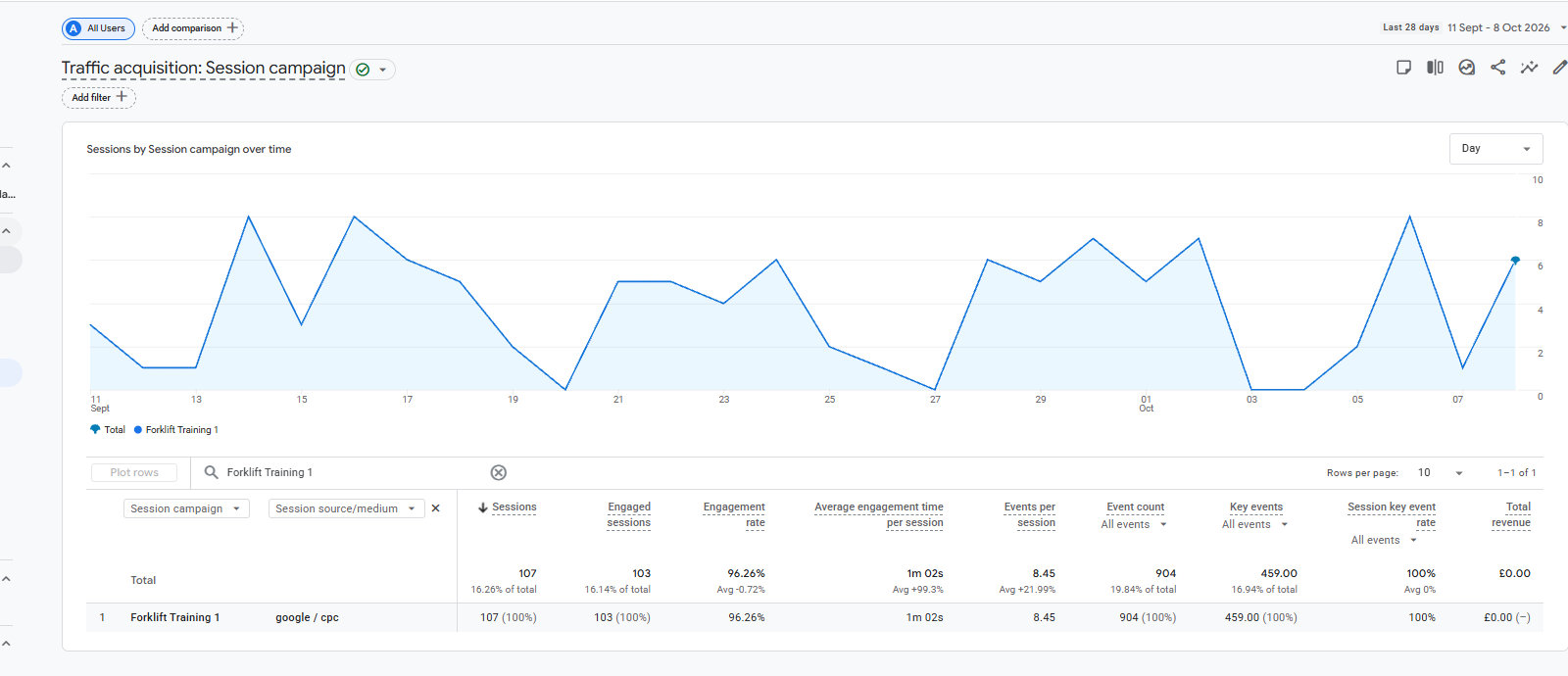
Whilst it is helpful to filter out other traffic sources when I change the date to before the UTM code was added I can still see results, am I over looking something or expecting too much.
You are not expecting too much, but you are seeing how Google Analytics 4 (GA4) handles traffic attribution windows.
When a visitor clicks a Google Ads link with a campaign name like Forklift Training 1, GA4 assigns that campaign name to that user. By default, GA4 uses a 30-day lookback window for session traffic.
If a user previously visited your site via that campaign link, GA4 remembers that campaign and continues to attribute their return visits back to Forklift Training 1—even if they type your web address directly or return weeks later without clicking the link again.
Why you see data before the UTM was active
- Date Range Selection: In your screenshot, the date range is set to 11 Sept – 8 Oct 2026 (the last 28 days).
- Returning Visitors: A user who first clicked your campaign link on 20 September might have visited your site again on 12 September via a direct bookmark. GA4 connects those sessions to the campaign attribution model.
- Ad Click-Throughs: If your Google Ads campaign was running during that earlier window, clicks were already sending parameter data automatically via Google Auto-Tagging (
gclid), even before you manually added custom UTM tags to the URL.
1.Filter by ‘First user campaign’:
Click the dropdown menu next to Session campaign and select First user campaign instead. This shows only the original, first-ever method a user found your site, ignoring return visits.
2.Check the exact launch date:
Change the date selector in the top right corner to start strictly on the day after you added the UTM link.
Verification
Once you adjust the date range to start after your link went live, any traffic shown under Forklift Training 1 represents brand new visits generated directly from that tagged campaign.
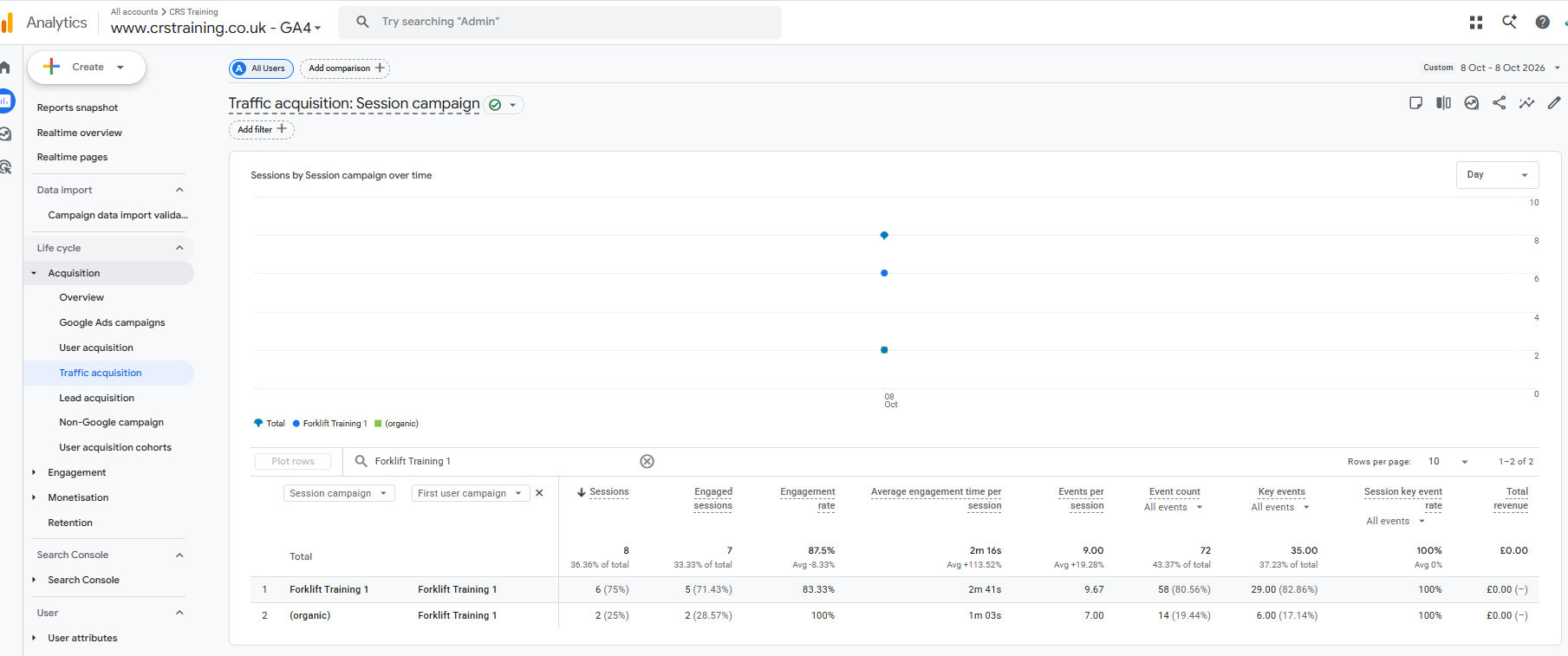
The UTM code was added Wednesday 7th and if I look at yesterday 8th that is showing more detail as the organic traffic is separated from the CPC. That is encouraging that the CPC spent 2m 41s on the site
Spot on! That is a brilliant finding and proves your UTM tagging is doing its job.
What you are seeing on 8th October is a clean breakdown of how users arrived during their very first visit:
- Row 1 (
Forklift Training 1): 6 sessions came from users whose very first interaction with your site was clicking your campaign link. They spent an average of 2m 41s on the site—which is outstanding engagement for paid or campaign traffic. - Row 2 (
(organic)): 2 sessions came from users who originally found you via unpaid search (organic), but later returned via your campaign.
Because your primary column is Session campaign and your secondary column is First user campaign, GA4 is showing you how new users vs returning users are interacting with that specific campaign.
How to verify your ongoing performance
To keep tracking this clearly day-by-day:
- Keep the single-day or post-launch date filter active: Always set the date range from 8th October onwards (or individual days) to ensure old, un-tagged traffic doesn’t skew your averages.
- Focus on Engagement Time & Key Events: An average engagement time of 2m 41s alongside a 100% Session key event rate confirms that visitors clicking this link are genuinely interested in your forklift training courses.
Whenever Google Ads seems to be performing fantastically it can be the business owner is clicking their own ads. Yesterday the business was sold to some new owners.
Congratulations on the sale of the business, Charles. That is a major milestone.
Regarding self-clicks inflating your Google Ads metrics: you are entirely right to be suspicious. Business owners testing their ads or checking their own website frequently generate artificially high engagement times and key events.
Here is how we can protect the Google Ads budget, clean up the analytics data, and hand over a clean system to the new owners.
1. Exclude Internal IP Addresses in GA4
To stop the business owners’ or staff’s visits from skewing your Google Analytics data going forward:
- Go to Admin (gear icon bottom left) > Data Streams > Select your web stream.
- Click Configure tag settings (at the bottom) > Show all > Define internal traffic.
- Click Create and enter the office/home IP addresses of the business owners and staff.
- Go back to Admin > Data Settings > Data Filters > Set the Internal Traffic filter from Testing to Active.
2. Exclude Internal IPs in Google Ads
To prevent Google Ads from charging for accidental clicks by staff or owners:
- Log into Google Ads.
- Go to Settings > Campaign Settings > Select the campaign.
- Expand Additional settings > IP exclusions.
- Paste the public IP addresses of the office and key personnel to block ads from showing to them altogether.
3. Verify Genuine Leads
Since 8th October showed 6 high-engagement sessions and key event completions:
- Cross-reference with Enquiries: Check your WordPress contact form plugin (e.g., GenerateBlocks forms, Gravity Forms, or WS Form) or email inbox for genuine phone calls or form submissions on 8th October.
- If no physical enquiry exists: The “key event” in GA4 may currently be firing on a non-lead action (such as a page view or button click rather than a completed form).
4. Setup for the New Owners
- IP Update: Request the static IP addresses of the new owners’ offices/homes so you can add them to the exclusion list immediately.
- Search Console Verification: Ensure search performance is monitored via Google Search Console alongside GA4 so you have an unfiltered view of organic terms without IP distortion.
Engagement time is a very good barometer of if the visitors are “right” from the Google Ads can I discover more about the visitors now UTM is added
Yes, now that UTM parameters are properly tracking campaign traffic, you can look beyond basic engagement time to see exactly how these visitors interact with your WordPress site.
Here is how to discover deeper insights about your campaign visitors in GA4:
1. Check Which Pages They Visit
See if paid visitors are landing on your dedicated course page and where they navigate next.
- In GA4, go to Reports > Engagement > Landing page.
- Add a secondary dimension by clicking the blue
+icon and searching for Session campaign. - Filter for Forklift Training 1 to see:
- The exact page they landed on.
- How many pages they viewed per session.
- Which specific pages kept them engaged for that 2m 41s.
2. Track Specific Actions Taken (Events)
Engagement time shows interest, but events show intent. Look at the specific interactions generated during those sessions.
- Go to Reports > Engagement > Events.
- Click the
+icon and add Session campaign (filtered toForklift Training 1). - Check for high-value actions such as:
click(e.g. clicking a phone number link).form_submit(submitting a GenerateBlocks contact form).scroll(scrolling 90% down the page).
3. See Their Location & Device Type
Ensure your Google Ads budget is attracting local, high-intent prospects rather than out-of-area visitors.
- Go to Reports > Tech > Tech details or User > Demographic details.
- Filter or add secondary dimensions for Session campaign.
- Check:
- Device category: Determine if most visitors are on mobile or desktop (essential for optimizing GenerateBlocks layouts).
- Town / City: Confirm visitors are within your actual training catchment area.
4. Verify Leads via Your WordPress Server
Always validate GA4 metrics against actual site enquiries:
- Log into your WordPress Dashboard.
- Check your form submission entries (e.g. GenerateBlocks / form plugin entry logs) for matching timestamps from October 8th.
- Cross-reference phone call leads or direct emails received on that date.
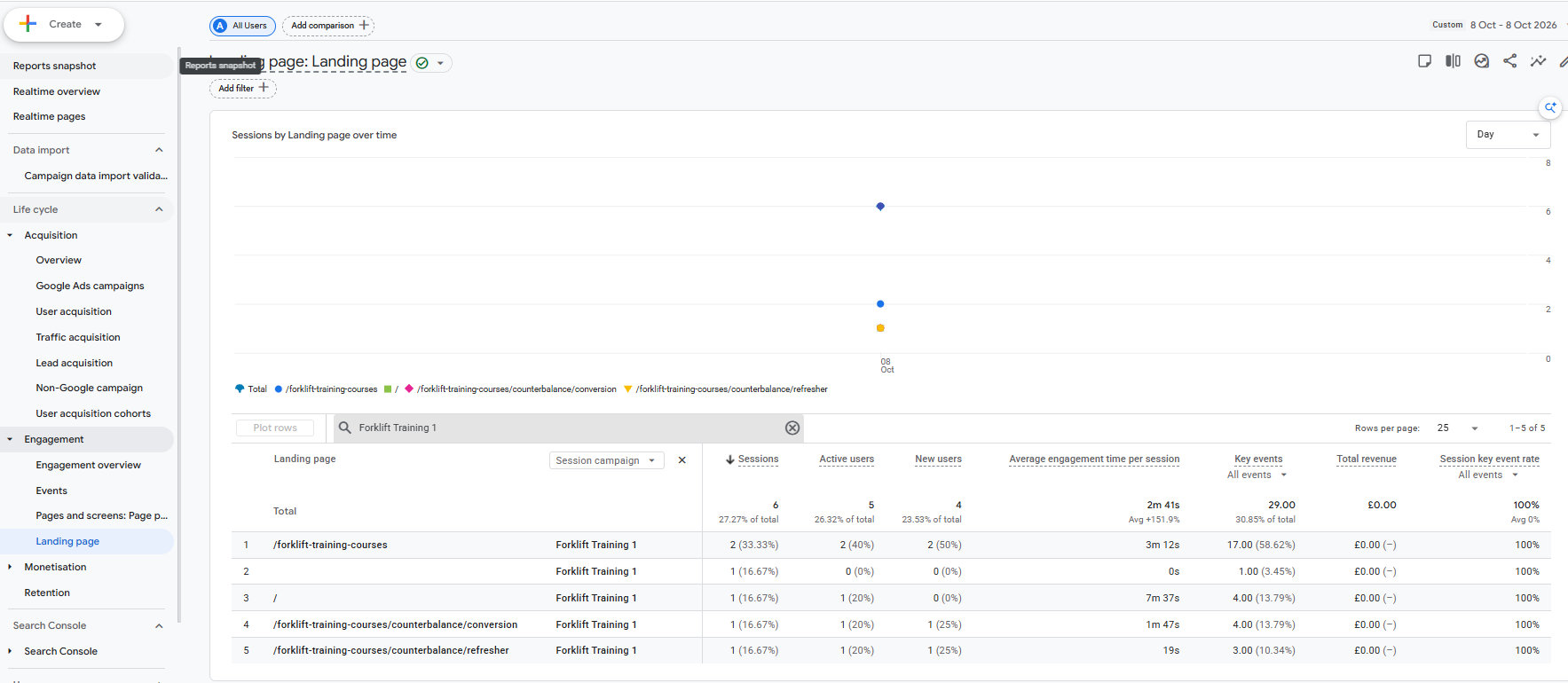
At the risk of sounding smug I can see the benefits of having a well structured naming for the pages on the website. They need no explanation. Chat to me about what you can see as you see far more than I do.
You have every right to feel smug—a clean, logical URL hierarchy is the backbone of proper analytics and good SEO. Because your page URLs are so descriptive, this single report gives us a crystal-clear look at user intent and campaign performance.
Here is what the data on this screen reveals:
1. High-Intent Specificity
- Niche Landing Pages Work: Visitors landing on
/forklift-training-courses/counterbalance/conversion(1m 47s) and/forklift-training-courses/counterbalance/refresher(19s) know exactly what type of course they need. - The Main Hub Drives Deep Engagement: The top-level hub page
/forklift-training-coursesbrought in 2 new sessions with an average engagement time of 3m 12s. People are reading the options thoroughly.
2. A Standout High-Value Lead
- Row 3 (
/– Homepage): Look at that single session on row 3: 7m 37s engagement time and 4 key events. Someone clicked the ad, landed on the homepage, and spent over seven minutes exploring your site. That level of dwell time usually signals someone ready to book or make a direct phone enquiry.
3. Immediate Takeaways for Your Strategy
- Direct Ad Traffic to Specific Pages: Since users are searching for specific course types (like counterbalance conversion or refresher), sending ad traffic directly to those child pages rather than the main homepage will shorten their route to booking.
- GenerateBlocks Layout Efficiency: For pages like the refresher course where engagement time is shorter (19s), make sure the call-to-action button and phone number sit right at the top of the GenerateBlocks layout so quick-decision buyers can act instantly.
Your URL structure makes tracking effortless—and more importantly, it proves your ad campaign is attracting genuine, interested buyers.